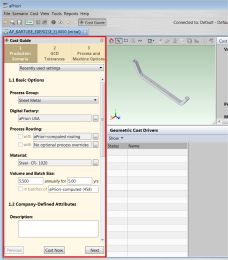
When you open a component that has never been costed before, aPriori displays the Cost Guide at the left side of the desktop.
The Guide is a wizard-like interface divided into three tabs that enable you to enter the production, tolerance, and machine & process information needed to generate an accurate costing for the component.
- Cost Guide interface

-
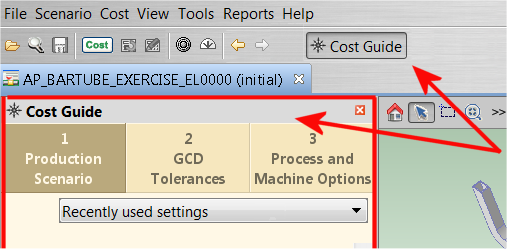
Turn on and off the display of the Cost Guide by clicking the Cost Guide button, or x on the Cost Guide toolbar to close the guide.
-
You can also use the View > Show Cost Guide option to turn the display on and off.

Note: The Cost Guide is always displayed when costing a component for the first time, regardless of the setting the Guidance button.
The Cost Guide is useful not only for initially entering cost inputs but also for refining those inputs.
The Cost Guide incorporates and combines features and tools that are found throughout the aPriori GUI and presents them in one place so that your initial costing can be more complete and more accurate.
Many tasks that used to be performed in different areas of the UI are now much more easily accessed through the Cost Guide, which include some of the following areas:
-
Production information (otherwise entered on the Production Info tab of the Cost Object window).
-
Administration information (otherwise entered on the Administrative Info tab of the Cost Object window).
-
Routing choices presented as a simplified version of the aPriori Routing Selection window (otherwise specified from the Manufacturing Process panel Edit > Routing Selection menu). This simplified version emphasizes primary routing alternatives.
-
Secondary process choices such as Heat Treatment or Surface Treatment processes, presented in an easy-to-navigate check-box format (otherwise specified by including these secondary processes within the aPriori Routing Selection window. For more information, see Selecting a process routing.
The reason for this organization of primary routing choices and optional secondary process choices in the Cost Guide is so that you would not be required to go into the full routing editor to add secondary processes. However, this behavior can be customized by a process node attribute “displayInSPDialog” which administrators can modify in the Cost Model Workbench
-
Nodes with the “displayInSPDialog” node attribute set to TRUE appear in the Secondary Process dialog and are not displayed in the Simplified Routing Editor.
-
Nodes with the “displayInSPDialog” node attribute set to FALSE (or not defined at all appear in the Simplified Routing Editor and not the Secondary Process dialog.
-
Refer to the node attributes section of the Cost Model Workbench Guide for more information.
Other options include:
-
Tolerance policy and/or tolerances on individual GCDs (otherwise specified from the Manufacturing Process panel Edit > Tolerance menu, or from the context menu on individual GCDs in the Geometric Cost Drivers panel).
-
Process setup options (otherwise specified from the Manufacturing Process panel Edit > Process Setup Options menu).
-
Machine Selection (otherwise specified from the Manufacturing Process panel Edit > Machine Selection menu).
You do not need to provide every possible value in the Cost Guide.
-
You could perform an initial costing with little or no input to the Cost Guide at all.
-
The Cost Guide does not require you to enter values, although it prevents you from using the Process and Machine Options tab until the component has been costed at least once.
-
The Cost Guide is provided to make it obvious what cost factors you should consider, and make it easy for you to specify those inputs that you decide to provide.
To navigate within the Cost Guide, you can use the Next and Back buttons at the bottom of the window to proceed to the next logical tab or to return to the previous one. You can also proceed directly to a specific tab by selecting the tab labels at the top of the window.
At any time, you can see the inputs you have provided to the Cost Guide by going to the Manufacturing Process panel in the aPriori Professional and clicking Edit > Cost Overrides Summary. You can also reverse all your overrides from here by clicking the Clear All Overrides button at the bottom of the window. For more information about the Cost Overrides Summary window Cost overrides summary dialog.